Creating a docker container
This document explains how to create a package that is capable of running docker containers on the Datagrok instance.
Overview
You can add Docker container to your plugin, and use it from the plugin UI. It can use a custom image or an image from Docker Hub. When a custom image is used, Datagrok takes care of building and running it automatically.
Once a user publishes a package that includes a Docker image, Datagrok adds the image to the build queue and builds it. Additionally, Datagrok creates a Docker container instance that can be accessed via HTTP(s) using the Datagrok JS-API. You can monitor the status of both images and containers in the Manage -> Docker view, which is useful for checking status or troubleshooting.
This system is cloud-agnostic and works with local instances using Docker Compose or AWS. The only requirement is that the grok-spawner container must be running in the same environment. You can access the container via HTTP, but only one EXPOSE $PORT is allowed in the image.
Below is an example of how to build, deploy, and use the docker container from the plugin.
How it works
grok publish builds the image on your workstation, pushes it to the Datagrok registry, and
uploads the package ZIP. On the server side, Datagrok's grok_spawner validates the image
and — when a user starts the container — deploys it on the configured orchestrator (Docker,
Docker Swarm, AWS ECS, or Kubernetes). Plugin code reaches the running container through
grok.dapi.docker.dockerContainers.fetchProxy; the container is never
exposed to the network directly.
The image and the container are tracked as separate entities with their own state machines:
DockerImage:      PENDING_VALIDATION ─► VALIDATING ─► READY
                                                    └► ERROR

DockerContainer:  PENDING_START ─► STARTING ─► STARTED ─► PENDING_STOP ─► STOPPED
                                            └► ERROR
A container with shutdown_timeout set is moved to SYSTEM_STOPPED automatically after
idling, and is re-started by the next call to fetchProxy.
For the full architecture — registry proxy, JWT auth, orchestrator backends, state machine timing, and the admin-side configuration each deployment path needs — see Docker containers (under the hood). For how plugin containers fit into the broader platform, see Infrastructure; for deployment paths see Deployment.
1. Create a dockerfile
Before we start, get familiar with docker docs, which are related to the process of application containerizing.
Now, let's create a folder dockerfiles. You should put there a Dockerfile with
the commands that are needed to build a docker image and run the container.
Follow all the best practices for writing dockerfiles to make them
simple, small, and efficient.
Example of such Dockerfile is located in Admetica package.
Running an already published image
If the image is already published to Docker Hub or to your registry, name it in
container.json and omit the Dockerfile entirely:
{
  "image": "datagrok/jkg_python:bleeding-edge",
  "port": 8888,
  "on_demand": true
}
grok publish then builds and pushes nothing — the server resolves the reference when
the package is deployed, and the container runs that image. Use this when the image is
built elsewhere (a CI pipeline, another repository) or is a stock third-party image.
Since there is no Dockerfile to read EXPOSE from, set port yourself if plugin code
needs to reach the container over HTTP.
A folder that has both a Dockerfile and an image in container.json is built from the
Dockerfile — image is ignored.
2. Container configuration
Each container can be configured using a container.json file, which must be placed in the same directory
as the Dockerfile. This file defines resource allocation and container behavior.
Example container.json
{
  "cpu": 1.5,
  "gpu": 1,
  "memory": 2048,
  "on_demand": true,
  "shutdown_timeout": 60,
  "storage": 25,
  "env": {
    "CONN": "#{x.Package:Entity}",
    "LOGIN": "login"
  }
}
Configuration properties
| Option | Type | Default | Description |
|---|---|---|---|
| cpu | Double | 0.25 | Number of CPU cores allocated to the container. |
| gpu | Integer | 0 | Number of GPU devices that should be reserved. |
| memory | Integer | 512 | Amount of RAM allocated in megabytes. |
| on_demand | Boolean | false | If true, the container starts only when a request is received. |
| shutdown_timeout | Integer | null | Time in minutes after which the container shuts down if idle. |
| storage | Integer | 21 | Allocated storage size in gigabytes. |
| shm_size | Integer | 64 | Shared memory size in megabytes. |
| env | Object | Environment variables for the container. |
Usage
- Place
container.jsonin the same directory as theDockerfile. - Modify resource limits as needed before publishing the package.
Pass any environment variables to the container using env parameter.
Use #{x.Package:Entity} expression to pass JSON-serialized entity from the package or any other namespace, for example: #{x.MolTrack:Moltrack} means Moltrack entity from Moltrack package.
Please note, credentials for the connection are passed only within the same package. You can't get credentials from a connection that does not belong to your package.
For more details, refer to the example container.json
that is located in the Admetica plugin.
Note: Creating the configuration file is optional. If it is not provided, default values will be used.
3. Implement the function to get a response
Make sure that the application inside the Docker container has an embedded HTTP server that handles requests and the listening port is exposed in the Dockerfile.
3.1. Http request
Add code that is responsible for making a request to the container:
async function requestAlignedObjects(id: string, body: PepseaBodyUnit[], method: string,
  gapOpen: number | null, gapExtend: number | null): Promise<PepseaRepsonse> {
  const params = {
    method: 'POST',
    headers: {'Accept': 'application/json', 'Content-Type': 'application/json'},
    body: JSON.stringify(body),
  };
  const path = `/align?method=${method}&gap_open=${gapOpen}&gap_extend=${gapExtend}`;
  const response: Response = await grok.dapi.docker.dockerContainers.fetchProxy(id, path, params);
  return response.json();
}
Use grok.dapi.dockerfiles.fetchProxy for HTTPS requests. You should specify the id in order to make the request
to the right container, path and params of the request. The method logic is fully aligned
with the JavaScript Fetch API and params is RequestInit object type.
To get id do:
const dockerfileId = (await grok.dapi.docker.dockerContainers.filter('pepsea').first()).id;
3.2. WebSocket connection
To make a WebSocket connection to a Docker container, use the grok.dapi.docker.dockerContainers.webSocketProxy method.
Specify the container id and path. You can also provide an optional timeout.
The webSocketProxy function returns a WebSocket when the connection is ready.
Example
const ws: WebSocket = await grok.dapi.docker.dockerContainers.webSocketProxy(container.id, '/ws');
ws.send('Hell World!');

const onMessage = (event: MessageEvent) => {
 const message = event.data;
 console.log(message);
};

ws.addEventListener("message", onMessage);

setTimeout(() => ws.close(), 3000);
4. Configure the registry in grok config
grok publish builds the image locally and, when a registry is configured for the target
server, tags the image as <registry>/datagrok/<package>-<container>:<version> and pushes
it before uploading the package ZIP. Without a registry the image is built but stays on
your workstation, and grok publish prints:
No registry configured. Image tagged locally only. Run `grok config --registry` to configure.
Registries are stored per-server in ~/.grok/config.yaml alongside the URL and developer
key. The full shape is:
default: 'dev'
servers:
  dev:
    url: 'https://dev.datagrok.ai/api'
    key: 'your-dev-key'
    registry: 'registry.dev.datagrok.ai'
  public:
    url: 'https://public.datagrok.ai/api'
    key: 'your-public-key'
    registry: 'registry.datagrok.ai'
  localhost:
    url: 'http://localhost:8080/api'
    key: 'admin'
    # no registry — images stay local for the host Docker daemon
The registry field is the hostname only — no scheme, no path. The convention is
registry.<datagrok-host>, served by grok_registry_proxy. For localhost stands the
registry is normally empty (the spawner reads images from the host Docker daemon).
Set the registry interactively
grok config --registry walks every server already in the file and asks for its
registry, pre-filling registry.<hostname-from-url> as the default:
grok config --registry
# > Docker registry for dev: (registry.dev.datagrok.ai)
# > Docker registry for public: (registry.datagrok.ai)
Press ENTER to accept the default, type a different hostname, or leave blank to clear the field.
Add a server with a registry non-interactively
Use grok config add to script the setup. --registry with no value falls back to the
hostname-derived default; passing a value sets it explicitly:
# Use the default registry.<hostname>
grok config add --alias dev \
  --server https://dev.datagrok.ai/api \
  --key your-dev-key -k your-dev-key \
  --registry

# Override the registry hostname
grok config add --alias dev \
  --server https://dev.datagrok.ai/api \
  --key your-dev-key -k your-dev-key \
  --registry registry.dev.example.com
How grok publish uses the registry
When a registry is set on the target server, grok publish:
- Runs
docker login <registry> -u any -p <devKey>— the dev key is the password. The registry proxy validates it against the Datagrok server and returns a short-lived JWT, so no credentials are stored on your workstation. - Builds the image with
--platform linux/amd64(cross-built for the server architecture) and tags it<registry>/datagrok/<package>-<container>:<version>. - Pushes the tagged image to
<registry>. The registry proxy forwards it to the backing registry (ECR, Docker Hub, or self-hosted) using Datagrok's credentials. - Uploads the package ZIP. The server picks up the new image via the spawner's validation loop.
If the registry hostname matches localhost or an IP address, grok publish skips the
--platform linux/amd64 flag so the image is built for the local Docker daemon. Use
this for single-machine Compose stands where the developer and the server share a
Docker host.
For the registry side of this picture (what grok_registry_proxy does, how to host
your own registry, and how images are validated server-side), see
Docker containers (under the hood).
5. Build and publish
Publish your package to one of the Datagrok instances (it is built first):
grok publish dev
The return code should be 0 to indicate a successful deployment.
6. Managing docker containers and images
You can check available Docker containers and images using Browse. Go to Datagrok and open Platform -> Dockers.
The opened view has two sections: Docker Containers (top) and Docker Images (bottom). Each section contains cards
that correspond to a container or image. From this view, you can check the container and image status,
which is reflected with a colored dot inside the card:
- Green dot: The container or image is running or ready.
- Red dot: An error has occurred.
- Blinking grey dot: The container or image is in a pending state (either starting, stopping or rebuilding).
- No dot (only for Docker container cards): The container is stopped.
You can check container logs or image build logs from the Property pane. To see them, click on the desired card, open the Property pane, and select Logs (for containers) or Build logs (for images).
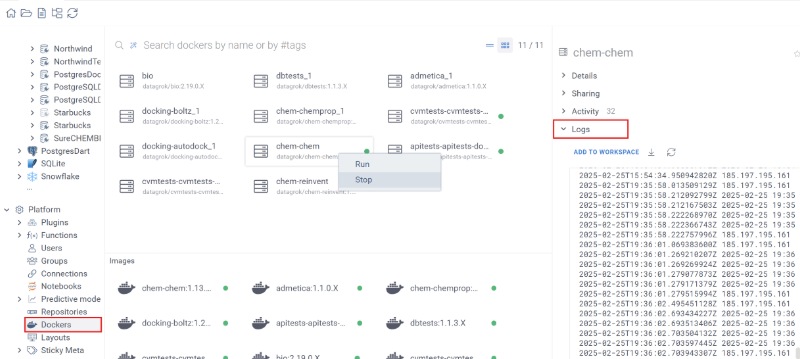
Note: You can start or stop a container, rebuild an image, or download the full context by right-clicking the corresponding card.
See also:
- Docker containers (under the hood) — architecture, registry, and admin-side setup
- Packages
- Connecting to database inside package Docker container
- Python functions
- Deployment