Enhance input UI
You can customize the script view using additional GUI-related options. Most of them are hints to improve the interface for your scripts. List options in curly braces in the corresponding header lines. The order of the hints makes no difference. All options are optional.
Add captions and hints
You can add a custom caption for an input parameter. Proper caption helps the user to understand the meaning of the parameter. Caption will be rendered in the script input form.
Additionally, you can add a hint. To do that, place the hint text in square brackets after the parameter annotation.
- Result
- Code
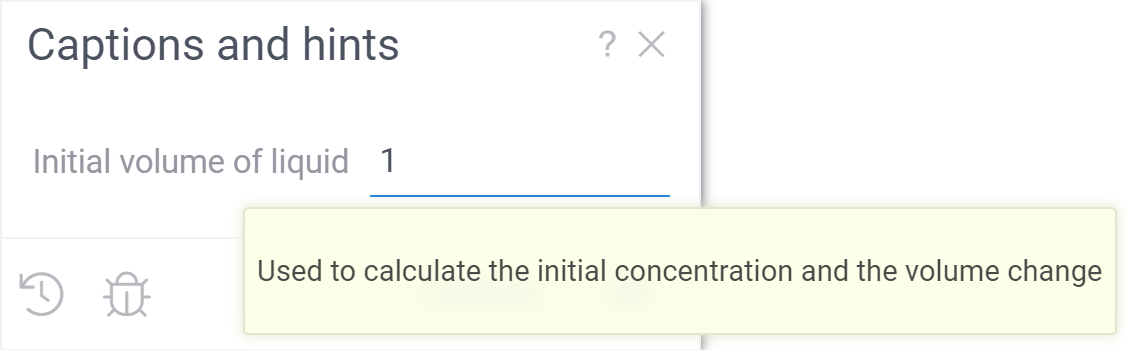
#input: double V1 { caption: Initial volume of liquid } [Used to calculate the initial concentration and the volume change]
Add units
You can add a proper unit label for an input parameter. The unit label will appear in the input form next to the input field.
- Result
- Code

#input: double initialTemp { units: °С }
Group inputs into categories
You can group script inputs into categories using the category tag.
- Result
- Short sample
- Full sample
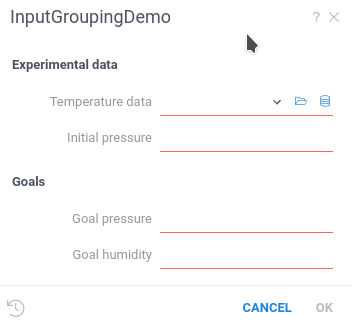
#input: double initialPressure { caption: Initial pressure; category: Experimental data }
#input: double desiredPressure { caption: Goal pressure; category: Goals }
#name: InputGroupingDemo
#language: python
#input: dataframe tempData { caption: Temperature data; category: Experimental data }
#input: double initialPressure { caption: Initial pressure; category: Experimental data }
#input: double desiredPressure { caption: Goal pressure; category: Goals }
#input: double desiredHumidity { caption: Goal humidity; category: Goals }
Choices
Datagrok natively supports the choices capability for primitive input types.
You can use it to pass one value from a pre-populated list or a list of selected values to the script.
- Single choice
- Multiple choices
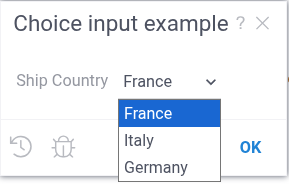
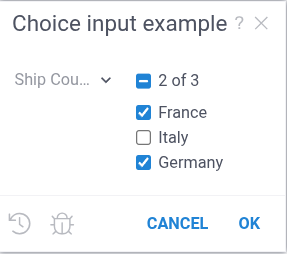
You can define choices using a list of fixed values,
a CSV file,
a name of another function,
or a direct SQL query.
For details, visit the page
Function annotations.
"Visible" and "enabled" expressions
You can control whether a script input is shown or editable by adding visible and enabled
expressions to the parameter annotation. These expressions can depend on the values of other inputs.
See more at the Function annotations
page.
- Result
- Code
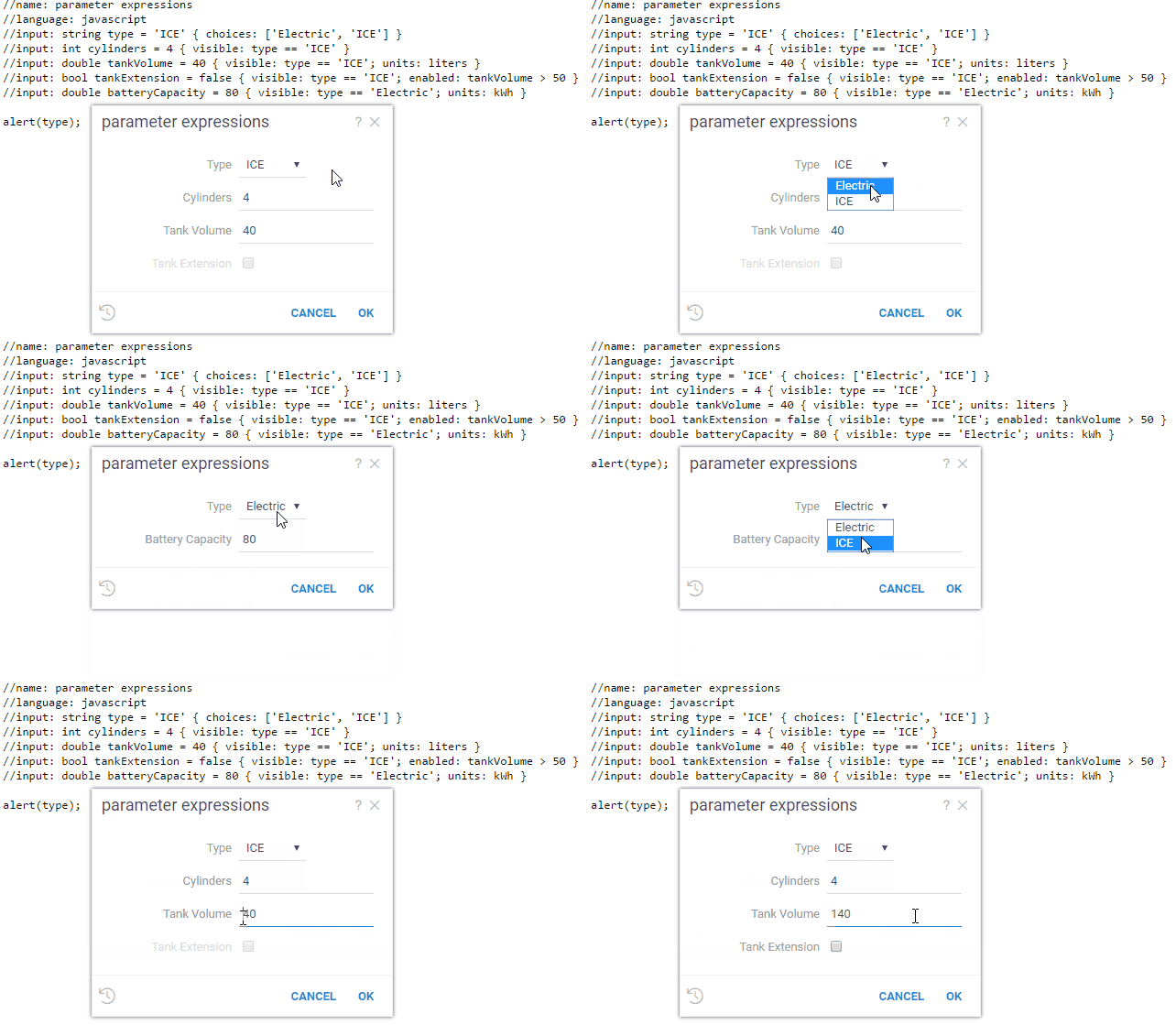
//input: string type = 'ICE' { choices: ['Electric', 'ICE'] }
//input: int cylinders = 4 { visible: type == 'ICE' }
//input: double tankVolume = 40 { visible: type == 'ICE'; units: liters }
//input: bool tankExtension = false { visible: type == 'ICE'; enabled: tankVolume > 50 }
//input: double batteryCapacity = 80 { visible: type == 'Electric'; units: kWh }