Work with the Datagrok script editor
Create a script
The simplest way to open a script is described on the Getting started with scripting page.
Alternatively, you can do the following:
- Enable extended Main menu in the Window icon on the right toolbar
- Open Main menu > Tools > Scripting.
- Choose the language for the script
Debug a script
When you run a script, Datagrok catches all log messages and displays it in the log panel below the script. If the script throws an unhandled exception, Datagrok catches it and displays an error popup, as shown in the handle an error section.
To include additional debug information in the log, run the script using Debug script button in the ribbon menu. Alternatively, run the script normally and press the Debug button on the bottom part of the input parameter window.

For big and complicated scripts, we recommend you develop them locally in your IDE, and then integrate them into Datagrok.
Execute a script
First of all, a script can be executed right from the script editor, as described in Run Script section.
Script is Datagrok function, and can be invoked in different ways:
- From the Datagrok console
- From the data job
- From the transformations editor
- From the function browser
Registered scripts can be called via JavaScript API in the following manner:
const result = grok.functions.call(
  "<PACKAGE_NAME>:<SCRIPT_NAME>",
  {
    <INPUT_NAME>: <INPUT_VALUE>,
    <INPUT_NAME_2>: <INPUT_VALUE_2>
  }
);
The single output will be assigned to result directly. Multiple outputs will be united into a single object.
You can retrieve any output value by accessing result object fields (e.g. result['<MY_OUTPUT>']).
To see it in action, open this code snippet from our samples gallery.
Find a script
To find and edit an existing script:
- Find it in the Scripts section.
- Right-click on the script card. The context menu appears.
- Choose the Edit action. Built-in editor with script code opens.
You can use smart search to filter scripts.
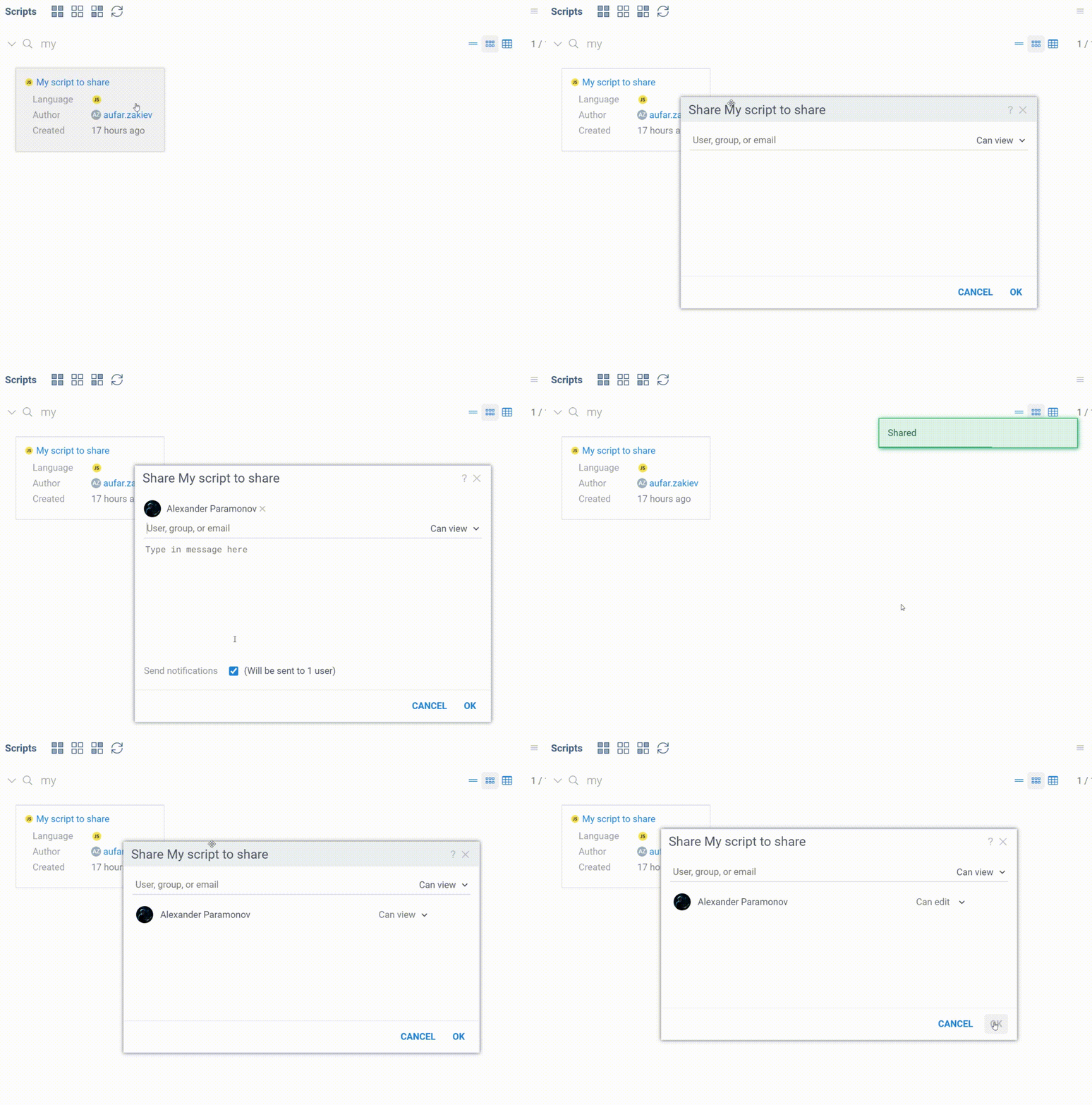
Share a script
All sharing features are in the Sharing dialog.
- To open it, find your script in Scripts section and right-click on it.
- Choose the "Share..." option in the context menu. In the dialog, you will see groups and users with their privileges.
- You may edit the list of collaborators and grant or revoke privileges at any moment.