SureChEMBL integration
The SureChEMBL plugin provides local access to the SureChEMBL database.
You can:
- Search either by similarity or substructure
- Set result limits and similarity thresholds
- View associated patent information
Watch a video tutorial (~3 mins).
Searching patents with SureChEMBL
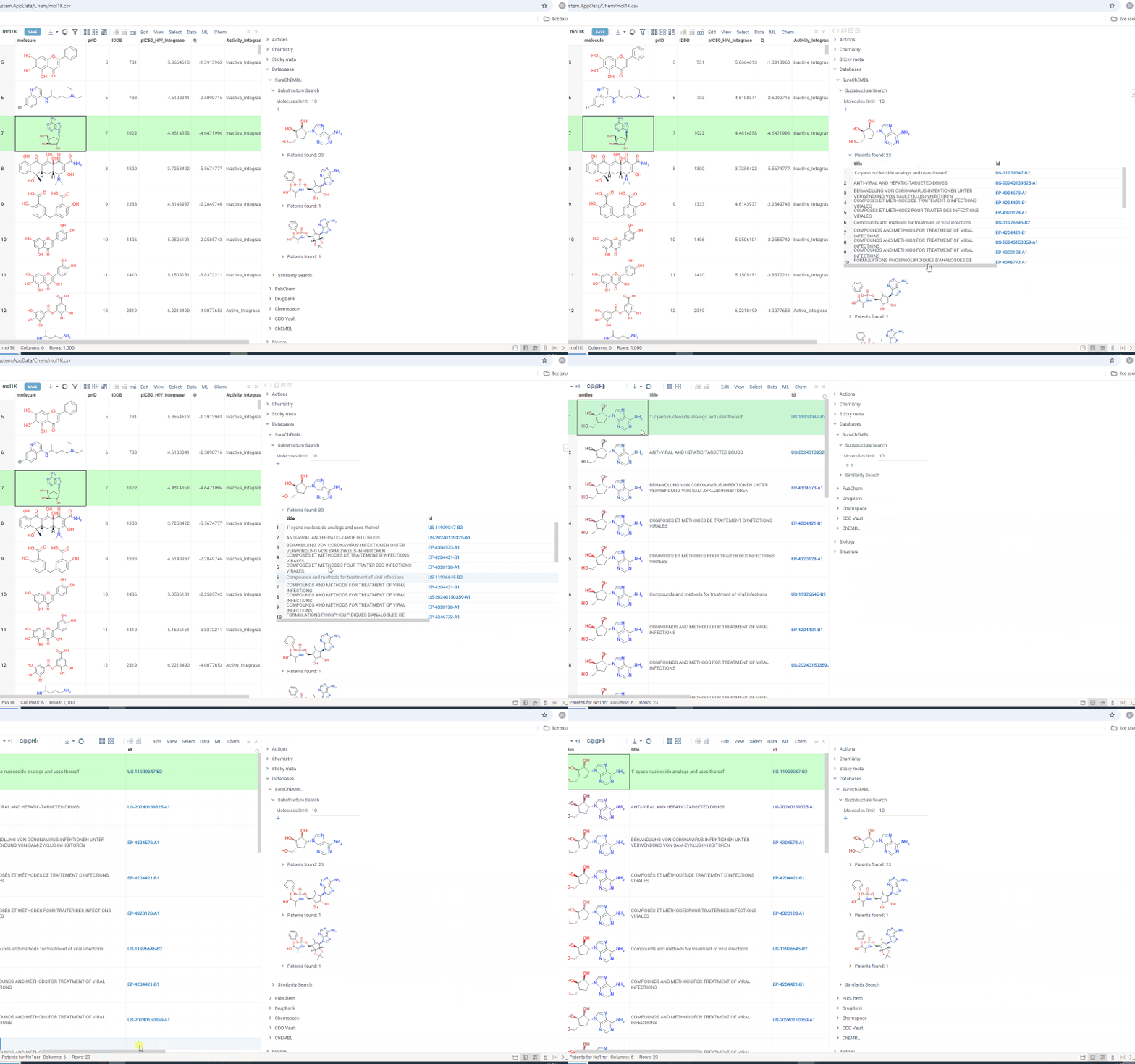
- Finding related molecules:
- In the dataset, click a cell containing your target molecule structure.
- In the Context Panel, expand Databases > SureChEMBL.
- Expand the corresponding info panes:
- Substructure Search: For molecules containing your structure
- Similarity Search: For structurally similar molecules (results display similarity scores above each molecule)
- Adjusting search parameters:
- Molecules limit: Change the number of results shown (default is 10)
- Similarity cutoff: Set the minimum similarity threshold for matches (for Similarity Search only)
- Viewing patent information:
- Quick view: Expand the patents pane beneath any molecule to see associated patents. A marker indicates the total number of patents found.
- Detailed view (opens a separate Table View):
- To view all patents across all search molecules, click the plus (+) icon beneath the search settings.
- To view patents for a specific molecule, click the plus (+) icon next to a specific molecule's patent count
- Direct access: The patent information contains patent ID links. Click the link to see the original patent on the SureChEMBL website.