Group analysis viewer
Group analysis viewer groups data by one or more columns and analyzes them using aggregations, charts, and statistical tests. It helps compare groups and understand their characteristics.
Note: To use a group analysis viewer, install the package Charts.
Add a group analysis viewer
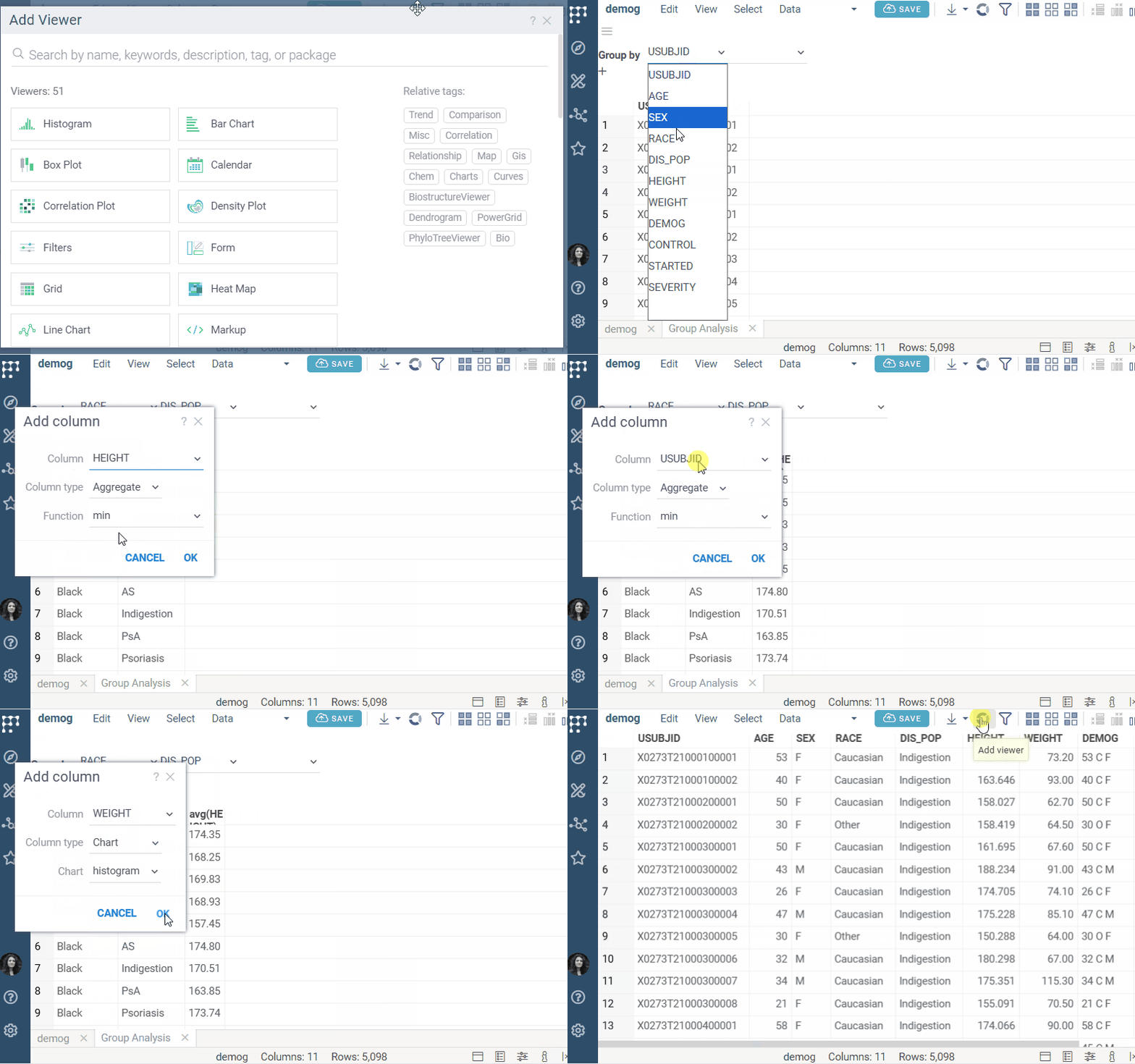
- On the menu ribbon, click the Add viewer icon. A dialog opens.
- In the dialog, select Group Analysis.
developers
To add the viewer from the console, use:
grok.shell.tv.addViewer('Group Analysis');
Configuring a group analysis viewer
-
Select grouping columns: choose one or more columns under Group by. A row is created for each unique combination of values.
-
Add analysis columns:
- Click the + icon to add columns for analysis. A dialog opens.
- In the dialog, select:
- Column: The column to analyze
- Column type:
Aggregate,Chart, orStatistics - Function/Chart/Statistic: Specific analysis method
- Click OK
The grid updates automatically to show analysis results. Charts appear as interactive visualizations within cells.
When to use alternative viewers
While the group analysis viewer provides basic grouping and analysis capabilities, consider these alternatives depending on your use case:
- Trellis plot: Best choice for in-cell visualizations grouped by categorical variables
- Pivot table: Recommended for multi-dimensional numeric aggregations with more flexible configuration options
- Statistics viewer: Recommended for summary statistical analysis
- Correlation plot: Best choice for exploring relationships and correlations between variables
- Additional statistical tools: Designed for advanced statistical methods including ANOVA and other hypothesis tests. For multivariate analysis techniques like PLS, see Multivariate analysis.